
Want to blow up on TikTok without spending a single dollar? This guide shows you exactly how to create viral AI fruit videos — the kind that helped accounts go from 0 to 200,000 followers in just 15 to 20 videos — using nothing but free tools.
Why AI Fruit Videos Are Exploding on TikTok
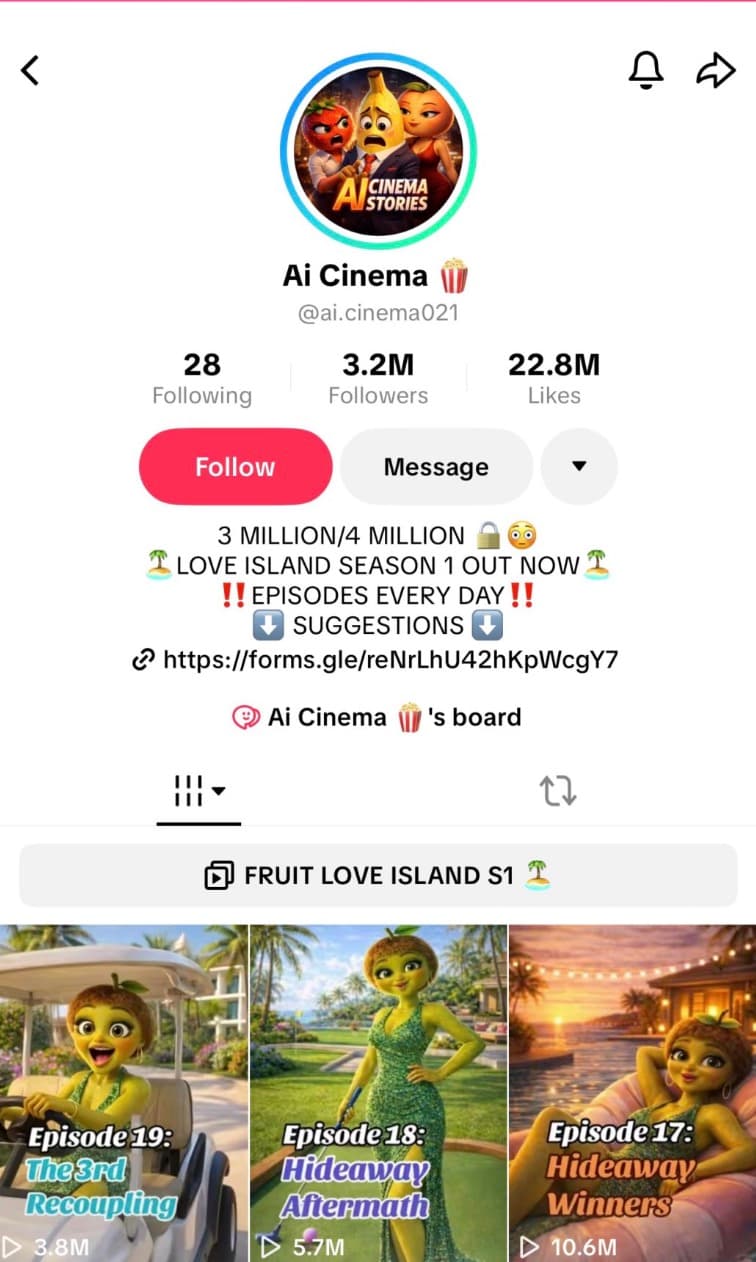
AI fruit videos are a visual storytelling format where anthropomorphic fruit and vegetable characters live through dramatic, romantic, or comedic situations. The format works for several reasons:
- Instant visual hook: The 3D-rendered fruit characters are immediately recognizable and stand out in the feed.
- Universal storytelling: Betrayals, revelations, and family drama resonate with everyone regardless of language.
- Retention loop: Twist endings (like *"Wait, what is this? So you were cheating on me the whole time?"*) keep viewers watching until the last second, which signals quality to the algorithm.
- Low competition, high reward: Despite their virality, very few creators know the full production process end to end.
One account hit 200,000 followers with only 15 to 20 videos. The niche is still wide open for organic growth.
The Free Tools You Need
Here's the complete stack — 100% free:
| Tool | What It's For | Cost |
|---|---|---|
| ChatGPT (free version) | Generate JSON prompts for images and videos | Free |
| Google Gemini (free version) | Generate images from prompts | Free |
| Google Flow / Veo 3 | Animate images into video clips with dialogue | 150 free credits on signup |
| CapCut or Filmora | Final edit, music, and assembly | Free (basic version) |
Why not MidJourney or Runway? Both are paid. The goal here is to spend absolutely nothing, and the Gemini + Veo 3 combo is more than enough for professional-quality output.
Step 1 — Find Inspiration and Choose Your Concept
How to find a video to recreate
- Open TikTok and search for accounts in the AI fruit niche (keywords: *AI fruit*, *fruit animation*, *AI story*).
- Find a video with strong engagement — lots of views, shares, or comments. That's proof the format works.
- Take a screenshot of a representative scene from the video.
Build your own universe — don't copy
The beginner mistake is replicating the exact same video. That's a bad strategy because:
- You risk copyright issues.
- Your account has no differentiation.
- The algorithm may detect duplicated content.
The right approach: keep the narrative concept, but create your own characters. For example:
- Original video: Strawberry 🍓 + Cucumber 🥒
- Your version: Peach 🍑 + Eggplant 🍆
Same type of story, different characters = original content that makes your account stand out.
Step 2 — Generate JSON Prompts with ChatGPT
This is the central step that orchestrates everything. ChatGPT will structure each scene into optimized prompts for the AI tools.
Step 2.1 — Describe the characters
Paste your screenshot into ChatGPT (or describe the scene in text) and use this prompt:
Describe these characters and scene in the form of a JSON prompt
for creating these in Google Gemini, so that I can create these
characters but as different fruits. The girl would be a peach
instead of a strawberry, and the guy would be an eggplant instead
of a cucumber. The render should look the same. Use a 9:16 aspect ratio.
ChatGPT will give you a structured JSON containing:
- A visual description of each character
- The scene's atmosphere and setting
- The render style (3D, cartoon, realistic, etc.)
- The correct image ratio
Why JSON? JSON is structured and unambiguous. It helps AI models (Gemini, Veo 3) understand exactly what you want, and it keeps the visual style consistent across all your scenes — something plain text prompts struggle with.
Step 2.2 — Get prompts for every scene
Once your character style is locked in, ask ChatGPT to map out the full story as individual scenes:
Now give me a series of prompts for text-to-image generation
in JSON format for this full story. Optimize the prompts for
Google Veo 3. Include the following scenes: [describe your story here]
A typical scene breakdown for a drama-style story:
| # | Scene | Description |
|---|---|---|
| 1 | Office confession | The peach confides in her eggplant boss |
| 2 | Peach returns home | She comes home, visibly troubled |
| 3 | Husband gets suspicious | Her husband notices something is off |
| 4 | Night sleep scene | Tension builds between the couple |
| 5 | The nightmare / scream | Intense dramatic moment |
| 6 | Pregnancy reveal | The final twist |
Step 2.3 — Get video prompts with dialogue
For the animation step, you need different, more dynamic prompts. Ask ChatGPT:
Now give me the video prompts with dialogues, in JSON format,
optimized for Google Veo 3, for each scene.
You'll end up with two sets of prompts:
- Image prompts → to generate static visuals in Gemini
- Video prompts → to animate those visuals in Veo 3
Step 3 — Generate Images in Google Gemini
How to access Google Gemini for free
- Go to gemini.google.com
- Sign in with your Google account — no paid subscription needed
- You have access to image generation in the free version right away
Generate each scene
- Copy the JSON prompt for scene 1 from ChatGPT
- Paste it into Gemini and hit Send
- Gemini generates the image in a few seconds
- If the result isn't quite right, regenerate — there's no strict limit on image generations
- Repeat for every scene (in the example workflow, that's 10 scenes = 10 images)
Download your images
Once you're happy with each image:
- Click on the generated image
- Download it in high resolution
- Name each file clearly (`scene_01.png`, `scene_02.png`, etc.) to keep things organized for the editing step
Step 4 — Turn Images into Videos with Google Flow / Veo 3
This is where the magic happens: your static images become animated clips with spoken dialogue.
Accessing Google Flow
- Go to Google Flow (Google's video generation platform powered by Veo 3)
- Sign in with your Google account
- You receive 150 free credits on signup, and Google gives you 50 additional credits every day
Creating the video clips
- Upload all your images into Google Flow (drag and drop works)
- Go to the Video section → Frames to Video
- Select 9:16 aspect ratio (portrait format for TikTok)
- Drag your first image into the interface
- Paste the video JSON prompt for that scene (the one with dialogue)
- Choose to generate 1 version only (to save credits)
- Click Generate
- Repeat for every scene
How many credits does it use?
Based on real usage:
- After generating 2 full videos, 110 credits remained out of 150
- That's roughly 20 credits per complete video (across multiple clips)
- With 50 free credits per day, you can maintain consistent production without ever paying
Download your clips
Once each clip is generated and approved, download it. Here's what a final output sounds like:
"Boss, he's been taking advantage of me. I don't know what to do anymore."
The characters speak, move, and the visual atmosphere stays perfectly consistent with your reference image.
Step 5 — Final Edit with CapCut or Filmora
Import and organize your clips
- Open CapCut (free, available on PC and mobile) or Filmora
- Drag all your clips into the project in scene order
- Drop them into the timeline in the correct narrative sequence
Add music
Music is critical for engagement in this format. It should be:
- Dramatic but not overpowering — it has to leave room for the dialogue
- Royalty-free or sourced from the TikTok/CapCut library to avoid copyright strikes
Tips:
- Use CapCut's built-in music library (fully royalty-free)
- Browse trending TikTok sounds in the drama/romance genre for inspiration
Export
- Export in 1080x1920 (full HD vertical)
- MP4 format, maximum quality
- Aim for a total duration between 45 seconds and 3 minutes to maximize TikTok reach
Managing Your Google Veo 3 Credits Smartly
This is one of the most important considerations for long-term production.
The multi-account strategy
Using 2 separate Google accounts is a completely valid way to multiply your available credits. Google doesn't prohibit this for personal use.
In practice:
- Account 1: 150 credits on signup + 50/day
- Account 2: 150 credits on signup + 50/day
- = 300 credits to start + 100 credits per day
Tips to make credits last
- Always generate 1 version per scene, not 3 or 4
- Validate your prompts in Gemini (images) before moving to Veo 3 (videos) — fixing issues at the image stage costs nothing
- Batch your generations in a single session to stay efficient
- If a clip is "good enough," accept it rather than regenerating multiple times
FAQ — Every Question You Probably Have
Do I absolutely need to pay for anything?
No. The complete workflow described in this guide is 100% free. ChatGPT (free version), Google Gemini (free version), Google Veo 3 (free credits), and CapCut (free) are all you need to produce professional-quality videos.
Why JSON prompts instead of plain text?
JSON is structured and leaves no room for ambiguity. It lets AI models clearly separate the different parameters: character style, background, lighting, colors, ratio, mood, and so on. Plain text prompts are more prone to random interpretation by the model, which leads to inconsistent results from scene to scene. JSON keeps your visual style locked in across your entire video.
My characters look different between scenes. How do I fix that?
This is the main challenge with this type of content. Here's how to handle it:
- Always use the exact same base prompt for character descriptions, and only change the scene and action
- Generate a "master" reference image of each character and include its precise description in every prompt
- If Gemini gives you an inconsistent result, regenerate until you get something close enough
Is it legal to take inspiration from an existing TikTok video?
Taking inspiration from a format or concept is legal. What isn't is copying the exact characters, word-for-word dialogue, or identical visuals. By switching the characters (peach/eggplant instead of strawberry/cucumber) and rewriting the dialogue, you're creating original content.
How long does it take to produce one complete video?
Once you're comfortable with the workflow:
- ChatGPT prompts: 15–20 minutes
- Gemini image generation: 20–30 minutes
- Veo 3 video generation: 30–45 minutes (including wait times)
- CapCut/Filmora editing: 15–20 minutes
Total: roughly 1.5 to 2 hours per video, which gets faster the more you do it.
What's the ideal video length for AI fruit TikToks?
Between 45 seconds and 2 minutes. Long enough to build a story with a satisfying twist ending, short enough to hold attention all the way through. The twist is everything — it's what drives comments, shares, and saves.
Will Google Veo 3 stay free?
The credit policy can change at any time. As of now, Google offers 150 credits on signup + 50 credits per day on Google Flow. The smart move is to create multiple accounts now and avoid burning all your daily credits if you don't need to — let them accumulate.
Can I actually make money from these videos?
Yes, multiple ways:
- TikTok Creator Fund / TikTok Shop: Direct monetization once you hit the thresholds (1,000+ followers, 10,000+ views in the past 30 days)
- Affiliate marketing: Promote relevant products in your bio or pinned comments
- Content selling: Sell the videos to other creators or content agencies
- Account flipping: Grow the account to a significant audience, then sell it
Is the free version of ChatGPT good enough for this?
For this specific use case, yes. The free version of ChatGPT is fully capable of generating quality JSON prompts for Gemini and Veo 3. The paid version might produce slightly more nuanced prompts, but the impact on the final video output is marginal — not worth paying for when you're starting out.
Can I use this workflow for other types of videos?
Absolutely. The ChatGPT → Gemini → Veo 3 → CapCut pipeline works for:
- Anthropomorphic vegetables (carrots, broccoli, etc.)
- Stylized animals
- Humanoid characters in fantasy settings
- Children's story content
The principle is always the same: define a consistent visual style, break the story into scenes, generate images, then animate.
Full Workflow Summary
1. INSPIRATION
   └── Find a viral TikTok in the AI fruit niche
   └── Screenshot a key scene
   └── Define your own characters (different fruits)
2. PROMPTS — ChatGPT (Free)
   └── Prompt 1: "Describe these characters in JSON for Gemini"
   └── Prompt 2: "Give me image prompts for each scene in JSON"
   └── Prompt 3: "Give me video prompts with dialogue for Veo 3 in JSON"
3. IMAGES — Google Gemini (Free)
   └── Paste each JSON prompt
   └── Download each generated image
   └── Name files clearly (scene_01.png, scene_02.png...)
4. VIDEOS — Google Flow / Veo 3 (150 free credits)
   └── Upload all images
   └── Frames to Video → 9:16 ratio
   └── Paste the corresponding video prompt
   └── Generate 1 version per scene
   └── Download each clip
5. EDITING — CapCut or Filmora (Free)
   └── Import all clips in order
   └── Add background music
   └── Export at 1080x1920 MP4
6. PUBLISH
   └── Post on TikTok
   └── Hashtags: #AIart #AIvideo #fruitstory #AIanimation
   └── Aim for 1 video per day for consistent growth
Final Thoughts
Creating viral AI fruit TikToks is not reserved for AI experts or people with big budgets. With this entirely free workflow — ChatGPT for prompts, Google Gemini for images, Google Veo 3 for animated clips, and CapCut for editing — you can produce professional-quality content starting today.
Three things will determine your success in this niche:
- Visual consistency: Keep the same character style across every video so your audience recognizes your brand immediately
- Strong storytelling: Build a real story with a twist ending that hits hard
- Posting regularity: The TikTok algorithm rewards consistency — post often
Accounts have reached 200,000 followers in fewer than 20 videos in this niche. There's no reason you can't do the same.
*Guide based on a tested and validated method used by active TikTok creators. All tools mentioned are free in their basic versions at the time of writing.*